> ## Documentation Index
> Fetch the complete documentation index at: https://www.pierview.ai/docs/llms.txt
> Use this file to discover all available pages before exploring further.
# Framer CMS Integration
> Automatically publish AI-generated content to your Framer CMS
## Overview
The Framer CMS integration lets you automatically generate and publish SEO-optimized content directly to your Framer website. Set up a content schedule, connect your Framer project, and new articles will appear in your CMS collection ready for review.
## Step 1: Get Your Framer API Key
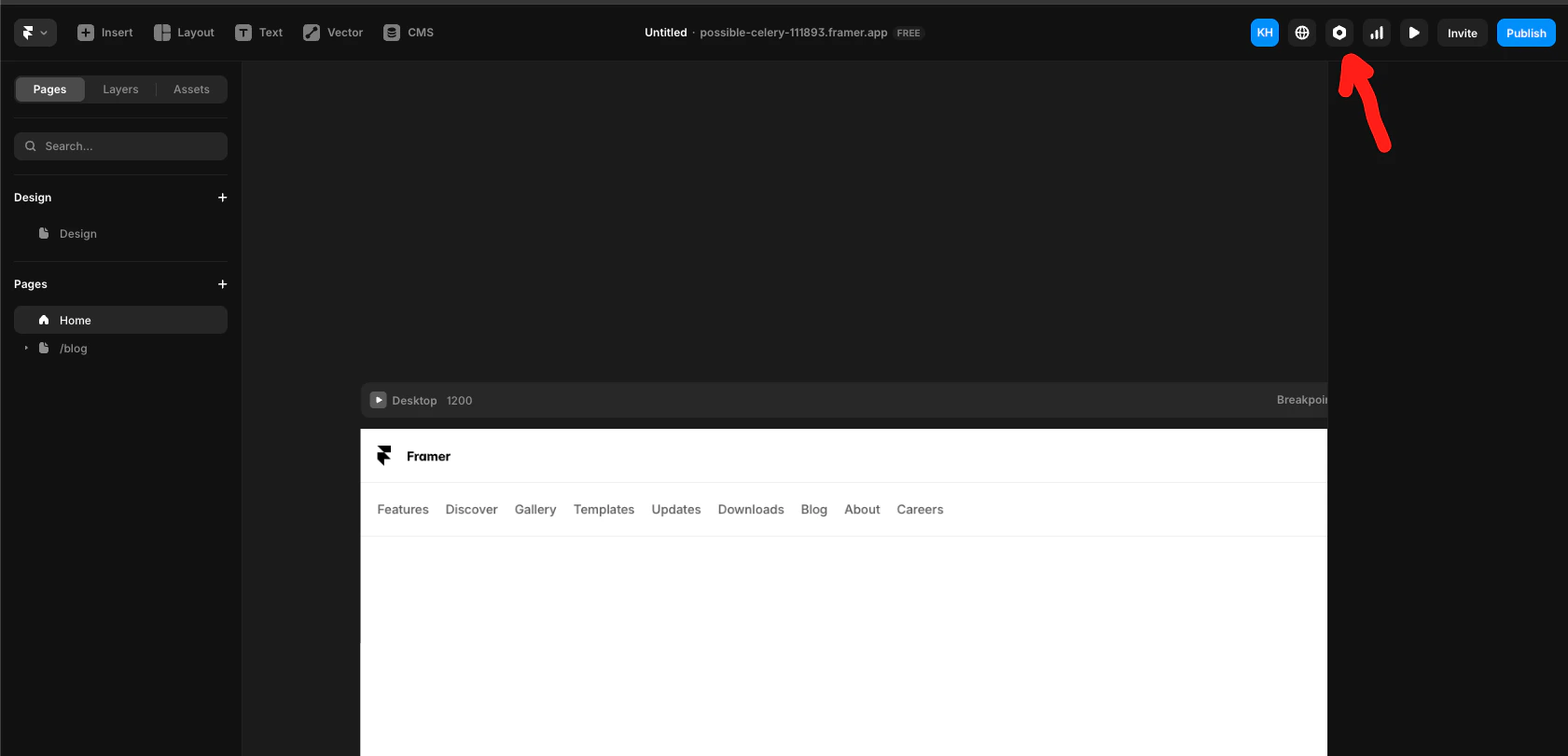
1. Head to Framer and open your site's settings page by clicking the **gear icon** in the top-right corner.
 2. Scroll down in the general settings until you see **API Keys**. Name your key `Pierview`, then copy the token.
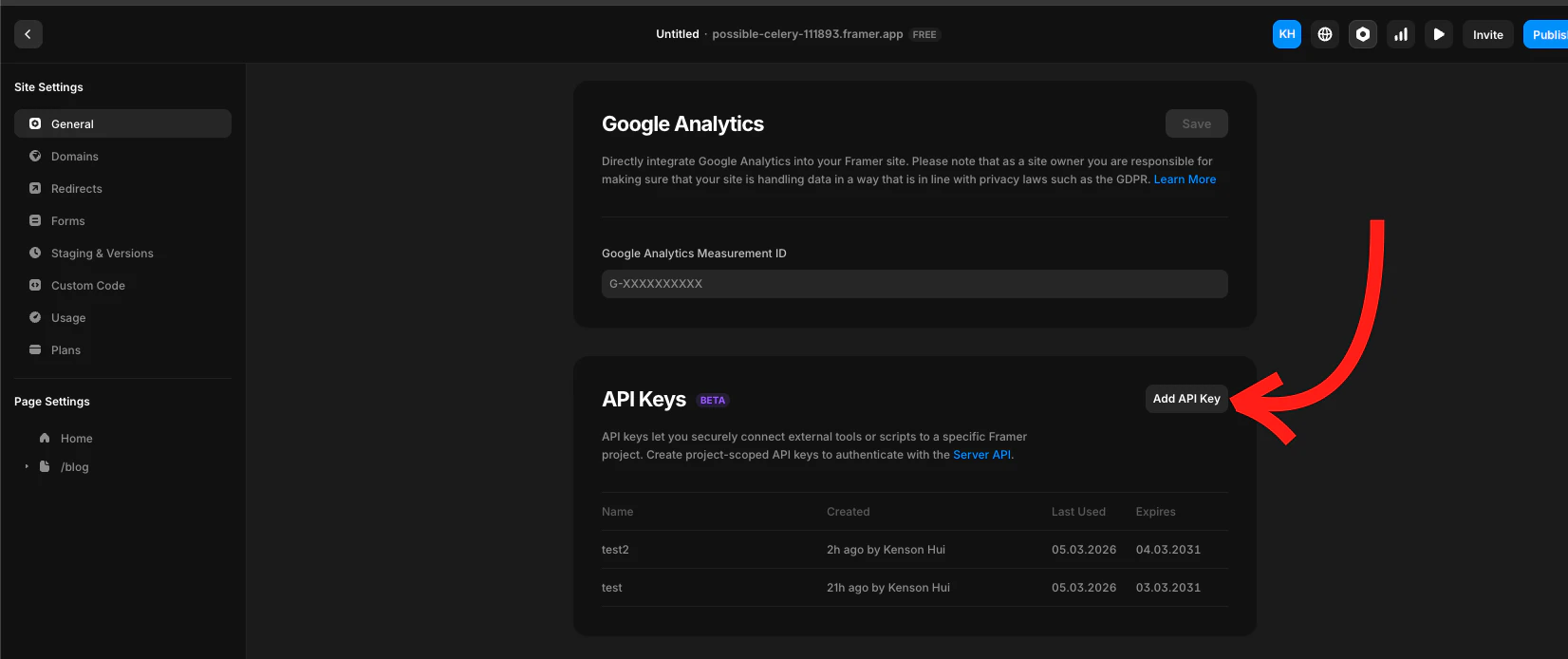 Don't close the API token dialog until you've finished all the steps below, you'll need to paste it into Pierview.
## Step 2: Connect Pierview to Framer
1. In Pierview, go to [Settings → Integrations → CMS Integrations](https://pierview.ai/dashboard/configuration/integrations) and click **Connect** next to Framer.
Don't close the API token dialog until you've finished all the steps below, you'll need to paste it into Pierview.
## Step 2: Connect Pierview to Framer
1. In Pierview, go to [Settings → Integrations → CMS Integrations](https://pierview.ai/dashboard/configuration/integrations) and click **Connect** next to Framer.
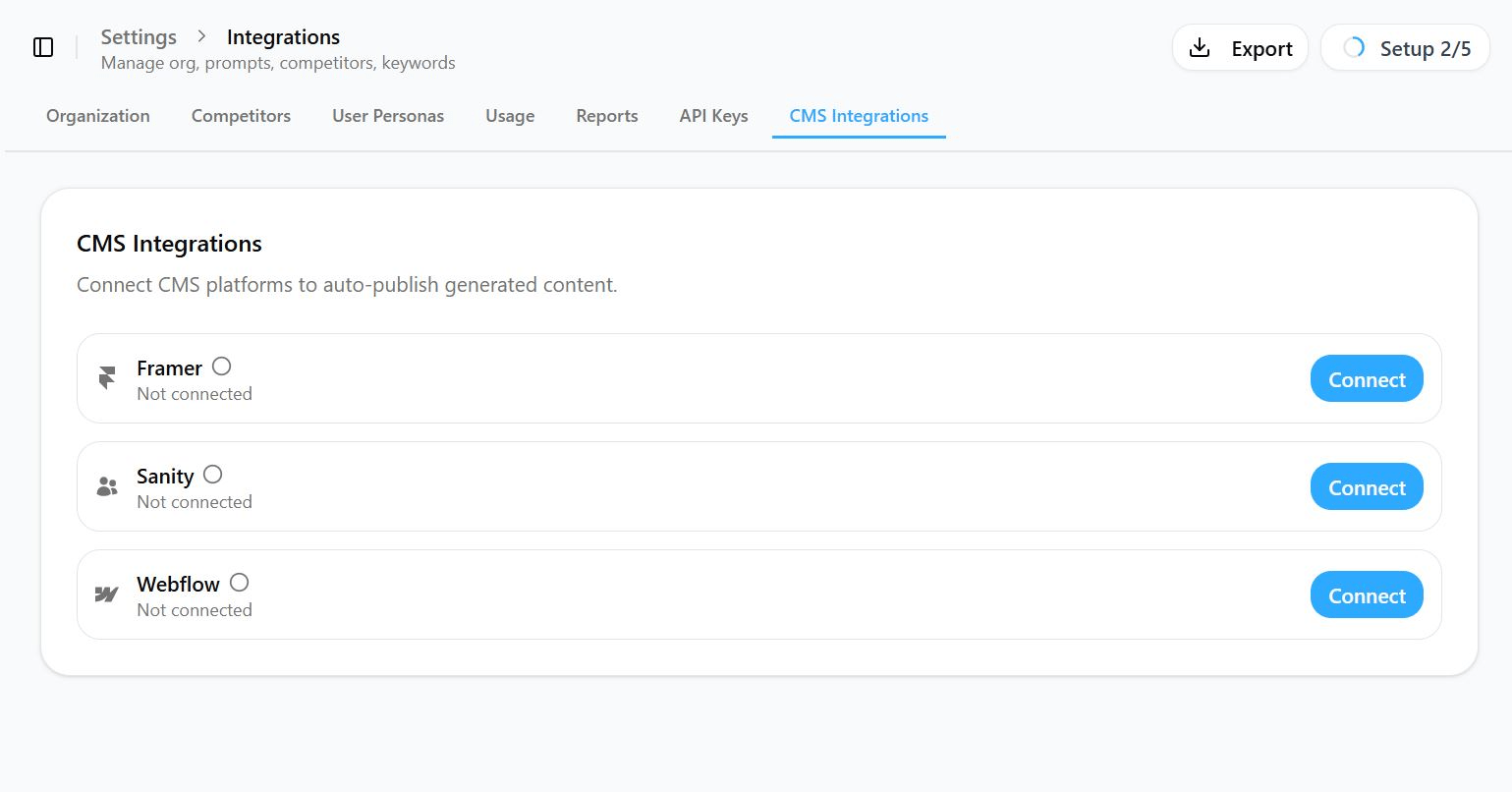 2. **Paste your API token** into the API Token field.
3. Copy the **URL of the Framer page** you're on and paste that in as the Project URL.
4. Select the **CMS collection** in Framer where you want content drafts to be exported.
5. Map the **Title** and **Content** fields, these should be defaulted for you.
## You're Connected!
Any content scheduled for generation will automatically appear in your Framer CMS as a draft, where you can review it and publish it on your site.
You can also export content on demand, go to any content generation and click **"Publish"** in the top-right sidebar to export it directly to Framer.
## Troubleshooting
* Verify your API key is correct and has not been revoked
* Check that the Project URL matches your Framer project
* Ensure the field mappings (Title, Content) match your Framer collection fields
* Check that the integration is enabled (toggle is on)
Make sure your Content field in Framer is set to **Formatted Text**, not Plain Text. The integration converts markdown to HTML, which Framer renders correctly in Formatted Text fields.
The integration automatically handles duplicate slugs by appending a number (e.g. `my-article-2`). If you're seeing errors, check that your Slug field name mapping is correct.
2. **Paste your API token** into the API Token field.
3. Copy the **URL of the Framer page** you're on and paste that in as the Project URL.
4. Select the **CMS collection** in Framer where you want content drafts to be exported.
5. Map the **Title** and **Content** fields, these should be defaulted for you.
## You're Connected!
Any content scheduled for generation will automatically appear in your Framer CMS as a draft, where you can review it and publish it on your site.
You can also export content on demand, go to any content generation and click **"Publish"** in the top-right sidebar to export it directly to Framer.
## Troubleshooting
* Verify your API key is correct and has not been revoked
* Check that the Project URL matches your Framer project
* Ensure the field mappings (Title, Content) match your Framer collection fields
* Check that the integration is enabled (toggle is on)
Make sure your Content field in Framer is set to **Formatted Text**, not Plain Text. The integration converts markdown to HTML, which Framer renders correctly in Formatted Text fields.
The integration automatically handles duplicate slugs by appending a number (e.g. `my-article-2`). If you're seeing errors, check that your Slug field name mapping is correct.