
Beta: The Pierview MCP server is in active development. Exact tool names,
parameters, and response formats may evolve over time.
Overview
The Pierview connector lets Claude on the web, Desktop, mobile, Claude Code, and ChatGPT query your AI visibility data directly. Ask questions about your citations, key metrics, and competitor mentions without leaving your workflow. You can also read and edit your brand kit — have Claude structure your brand guidelines and save them back to Pierview. Authentication is secured using OAuth with OIDC with PKCE.Prerequisites
- A Pierview account with an active subscription
Setup
- Claude web & Desktop
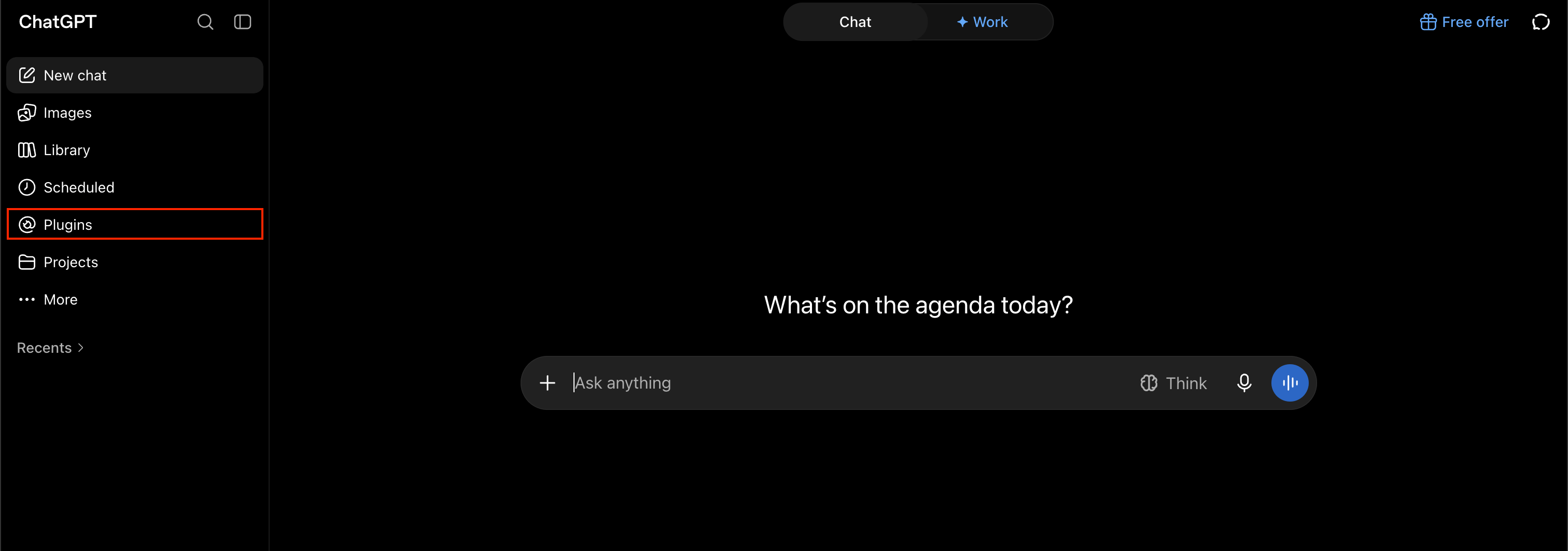
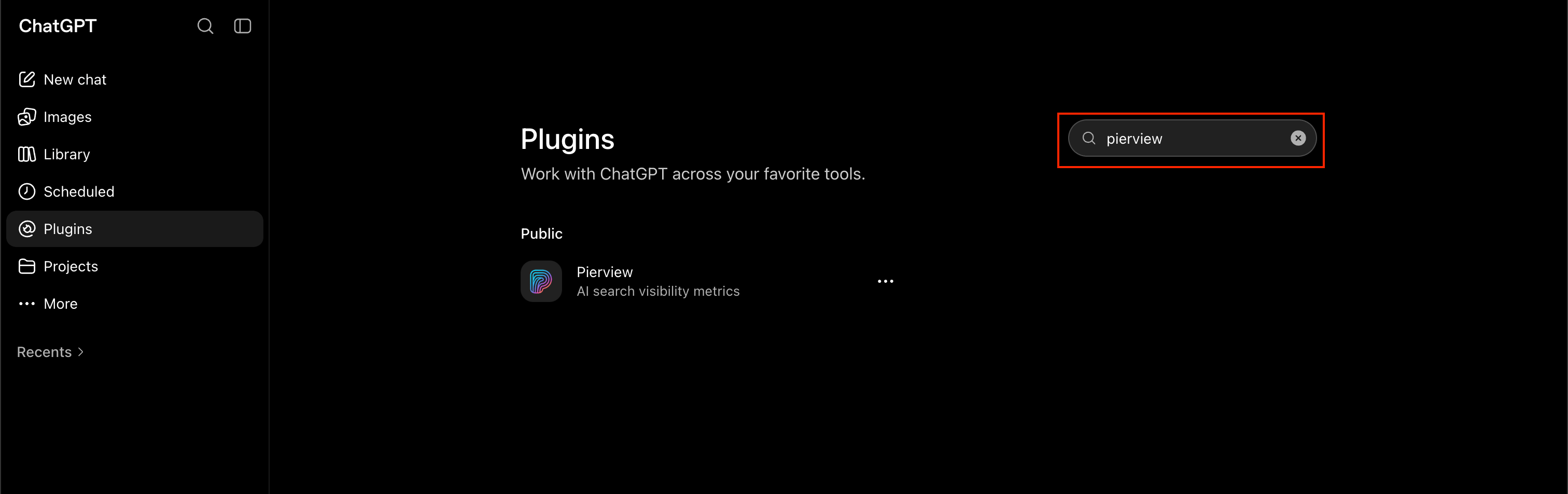
- ChatGPT
- Claude Code
- Agent SDK
1
Browse connectors
Open Settings, select Connectors under Customize, click Add, then select Browse connectors.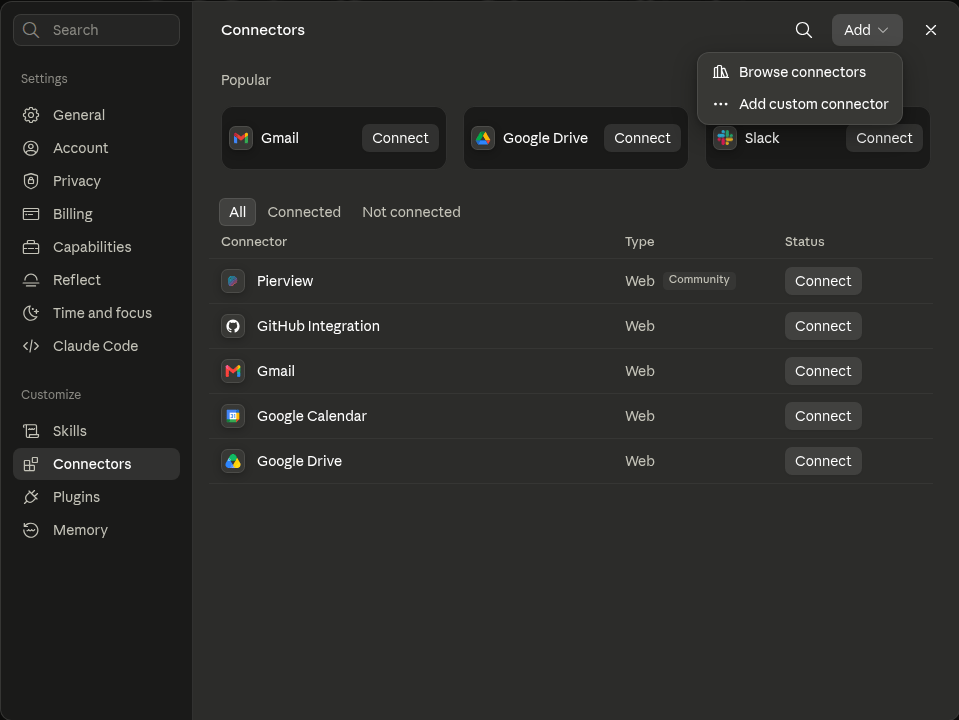
2
Find Pierview
In the directory, select Connectors, search for Pierview, then select the Pierview connector.
3
Connect and authenticate
Review the connector details, click Connect, then sign in to Pierview and approve access to your data.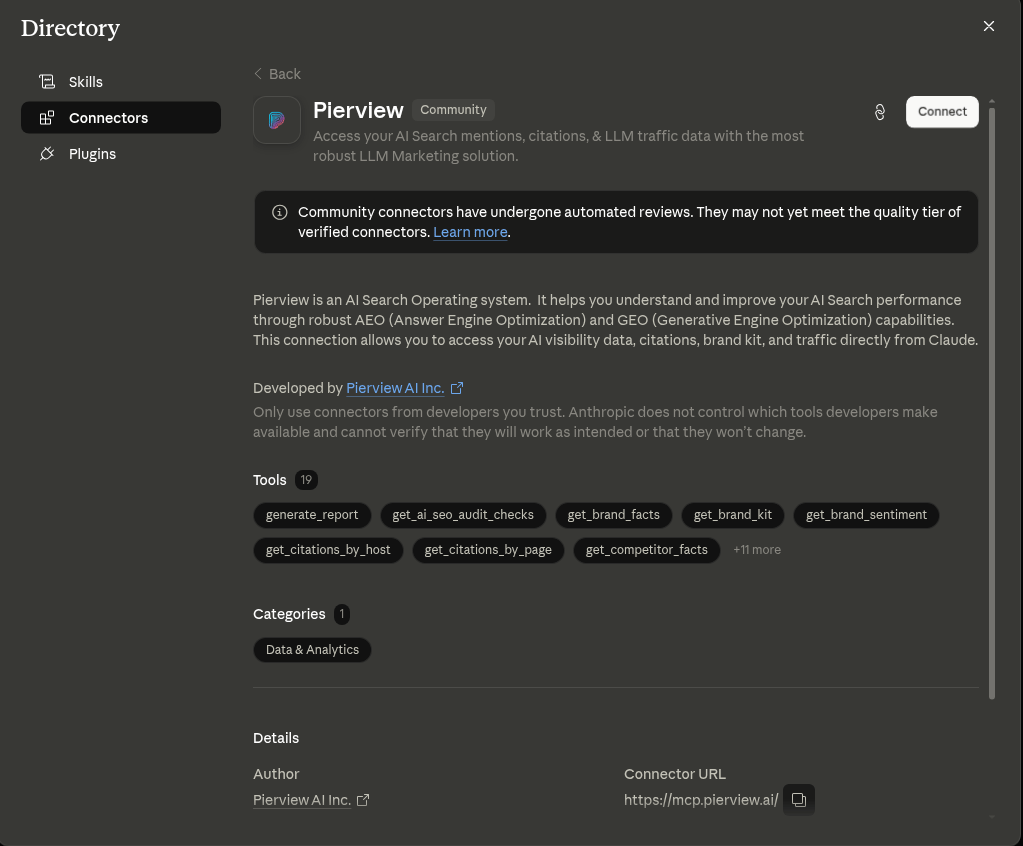
On Claude Team and Enterprise plans, an organization owner may need to add Pierview from Organization settings > Connectors before members can connect their accounts.
Available Tools
All data tools accept an optionalorganizationId parameter. If omitted, your default organization is used. Call list_organizations first to see your available organizations.
list_organizations
List all organizations you have access to. Call this first to discover available organization IDs.
Parameters: None
Returns: Array of organizations with organizationId, organizationName, workspaceName, and role.
get_key_metrics
Get mention rate, average ranking, and share of voice for your organization (same as the Key Metrics cards on the dashboard). The previous period of equal length is computed automatically for comparison.
Parameters:
Returns:
get_citations_by_host
Get top cited hosts/domains with citation counts and per-LLM breakdown. The previous period of equal length is computed automatically for comparison.
Parameters:
Returns: Cited hosts with total counts, period-over-period deltas, and per-LLM citation breakdowns.
get_citations_by_page
Get top cited pages (URLs) with period citation metrics and per-LLM breakdown. The previous period of equal length is computed automatically for comparison.
Parameters:
Returns: Cited pages with URL, title, total counts, and per-LLM citation breakdowns.
get_visibility_timeseries
Get visibility trends over time by competitor. Returns at most 12 x-axis points and the top 5 competitors.
Parameters:
Returns: Per-competitor time series with mention rates per time bucket.
get_competitor_llm_breakdown
Get which LLMs mention which competitors and at what percentage over the last 14 days.
Parameters:
Returns: Per-competitor, per-LLM mention percentages with provider metadata.
get_missed_prompts
Recent visibility prompts where competitors appeared in LLM responses but your brand did not. Use this to identify content and topic gaps.
Parameters:
Returns: Array of missed prompts with the prompt text, which competitors appeared, and associated metadata.
get_traffic_analytics
Full website traffic analytics for your organization (same data as Dashboard → Traffic Analysis). Returns total visits, unique visitors, live users, top referrers, traffic sources breakdown, device breakdown, session metrics, bot vs human traffic analysis, UTM campaign analytics, and daily traffic time series.
Parameters:
Returns:
get_traffic_summary
Quick traffic overview with key metrics only. Use this for a fast snapshot; use get_traffic_analytics for the full dataset.
Parameters:
Returns:
get_brand_sentiment
Brand sentiment analysis derived from LLM visibility responses. Returns an average sentiment score, distribution across positive/neutral/negative/mixed responses, per-platform breakdown, and top brand strengths and weaknesses extracted by AI.
Parameters:
Returns: Average sentiment score (0–100), sentiment distribution counts, per-platform breakdown, and lists of top brand strengths and weaknesses.
get_competitor_facts
AI-extracted facts about your tracked competitors from LLM visibility responses. For each competitor, returns positive and negative facts along with a sentiment score.
Parameters:
Returns:
competitorGroups — array of competitors, each with up to 15 extracted facts and a sentiment score.
get_brand_facts
AI-extracted facts about your own brand from LLM visibility responses. Returns a brand attribute breakdown by category (pricing, performance, usability, features, support, brand) with positive/negative signal counts, plus a list of specific brand facts with their polarity.
Parameters:
Returns:
attributes — per-category breakdown with positive/negative counts; brandFacts — up to 40 specific extracted facts with polarity.
get_brand_kit
Read your organization’s brand kit — the structured brand guidelines used to keep generated content on-brand. This is your own authored content (not AI-extracted), edited from the Brand Kit section of the dashboard or via update_brand_kit.
Parameters:
Returns:
update_brand_kit
Write tool. Unlike the read-only data tools,
update_brand_kit modifies
your brand kit. It is annotated destructiveHint so MCP clients can prompt
for confirmation before running it.
Returns: The updated brand kit (
brandDescription, brandVoice, authorPersona, writingRules, productLines, updatedAt).
get_llm_referral_traffic
Filters your website traffic to show only visits originating from AI/LLM platforms (ChatGPT, Claude, Perplexity, Gemini, Copilot, and others). Covers both direct referrer domains and UTM-tagged sources.
Parameters:
Returns:
list_ai_seo_crawls
List full-site AI SEO crawls for the organization, most recent first. Each crawl audits an entire domain. Call this first to find crawl IDs before fetching specific audit results with get_ai_seo_audit_checks.
Parameters:
Returns:
crawls — array of crawls with crawl ID, domain, status (running or completed), and score breakdowns.
get_ai_seo_audit_checks
Get AI SEO check results for your organization from a site crawl. Without auditId, lists recent crawls. With auditId (a crawl ID, e.g. from list_ai_seo_crawls), returns the crawl’s site-wide checks (e.g. robots_present, sitemap, llms_txt), post-crawl checks, and per-page individual checks (e.g. canonical, title_description, structured_data) with pass/fail status, scores, and details. Pages are returned worst-scoring first and capped at 100; totalPages reports the full count so you can tell when the list is truncated.
Parameters:
Returns: When
auditId is provided: crawl metadata (domain, status, scores), siteWideChecks, postCrawlChecks, totalPages (full page count), and pages — the worst-scoring pages first (capped at 100), each with its own checks (per-check pass/fail status, scores, and details). When omitted: crawls array of recent crawls with crawl ID, domain, status, and score breakdowns.
get_prompt_mention_rates
Per-prompt mention rate (share of responses mentioning your brand) for each tracked prompt, compared across two consecutive 14-day windows. Results are sorted by absolute change, descending.
Parameters:
Returns:
prompts — per-prompt current and previous mention rate (0–1 fractions) plus response counts per window; asOfDate and windowDays echoing the window used.
list_prompts
List your organization’s tracked prompts, as shown on the Prompts page, with each prompt’s persona and estimated monthly prompt volume. volume is the same figure as the dashboard’s Prompt Volume column: an estimate of monthly AI search volume built from the prompt’s keywords, rounded, and null where the dashboard shows no figure. Prompts are sorted by volume, highest first, like the dashboard’s By Volume view.
Parameters:
Returns:
add_prompt
Write tool. Changes which prompts your organization tracks. It is
annotated
destructiveHint so MCP clients can prompt for confirmation.
Returns:
status (created, restored, or exists) and the prompt.
update_prompt
Write tool. Annotated
destructiveHint.promptId starts collecting results. Pass personaId: null to unassign the persona.
Parameters:
Returns: the updated
prompt, and previousPromptId when the text changed.
delete_prompt
Write tool. Annotated
destructiveHint.add_prompt restores it.
Parameters:
Returns:
deleted, promptId, and the deleted prompt text.
generate_report
Generate a complete performance report for your brand over any date range (a full month, a half month, or a custom span). Assembles five sections — visibility metrics, citation growth, content performance, prompt coverage wins, and technical — with display-ready numbers, deltas resolved against the equal-length window immediately before the range, and top movers pre-selected.
Parameters:
Returns:
report — the assembled report object with all five sections; format_guide — guidance for narrating the report as prose.
API Keys
API keys let you authenticate with the Pierview MCP server using a Bearer token instead of OAuth. This is useful for server-side integrations, CI/CD pipelines, or any environment where browser-based OAuth isn’t practical. Keys are scoped to your organization and can be created, viewed, and revoked from the Pierview dashboard.Creating an API Key
1
Open Configuration
Go to your Pierview dashboard and select the API Keys tab.
2
Create a new key
Click Create API Key, enter a descriptive name (e.g. “Production MCP” or “CI Pipeline”), then click Create.
3
Copy your key
Your full API key will be displayed once. Copy it and store it securely, you won’t be able to see it again.The key starts with
pv_ followed by 32 hex characters.Using Your API Key
Pass the key as a Bearer token in theAuthorization header when connecting to the MCP server.
- Claude Code
- Claude Desktop
- Cursor
Revoking a Key
To revoke an API key, go to the API Keys tab in Configuration and click the trash icon next to the key you want to disable. Revoked keys are immediately rejected by the server.Security
- API keys are hashed before storage, Pierview never stores your plaintext key
- Each key is scoped to a single organization
- Revoked keys cannot be re-activated; create a new key if needed
- Rotate keys periodically as a best practice
Example Queries
Once connected, you can ask your AI tool questions like:- “What are my top cited pages this week?”
- “What is my current mention rate and share of voice?”
- “How has my visibility changed over the last two weeks?”
- “Which LLMs mention my competitors the most?”
- “Show me citation trends for my different organizations”
- “Generate a performance report for last month”
- “Which prompts gained or lost the most visibility over the last two weeks?”
- “What’s in my brand kit?”
- “Here are our brand guidelines — structure them and save them to my brand kit”
- “Update my brand voice to be more concise and technical”