
Overview
Shopify limits how quickly outside tools can read a store. On a Shopify store, the AI SEO Audit can hit those limits after a few dozen pages, which slows it down or stops it before it reaches every page. Shopify lets store owners create a crawler signature for tools they trust. When you save one in Pierview, the audit sends it with every request to that domain. Shopify then treats the audit as one of your own tools.Create a signature in Shopify
1
Open Crawler access
In your Shopify admin, go to Online Store > Preferences and scroll to Crawler access.
2
Create the signature
Click Create signature. Give it a name such as “Pierview”, choose the domain you audit in Pierview, and set how long it is valid. The longest option is 3 months.
3
Copy the values
Copy the Signature, Signature-Input and Signature-Agent values.
Save it in Pierview
1
Open Advanced options
Go to Optimization > AI SEO Audit. Below the domain field, click Advanced options (the gear icon).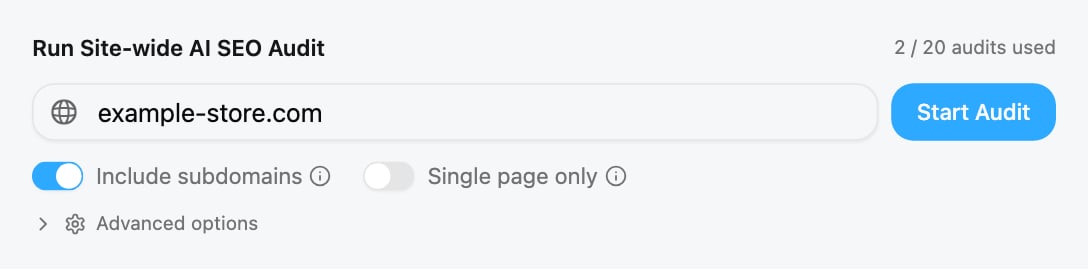
2
Click Add signature
In the Shopify crawler access card, below Crawl settings, click Add signature.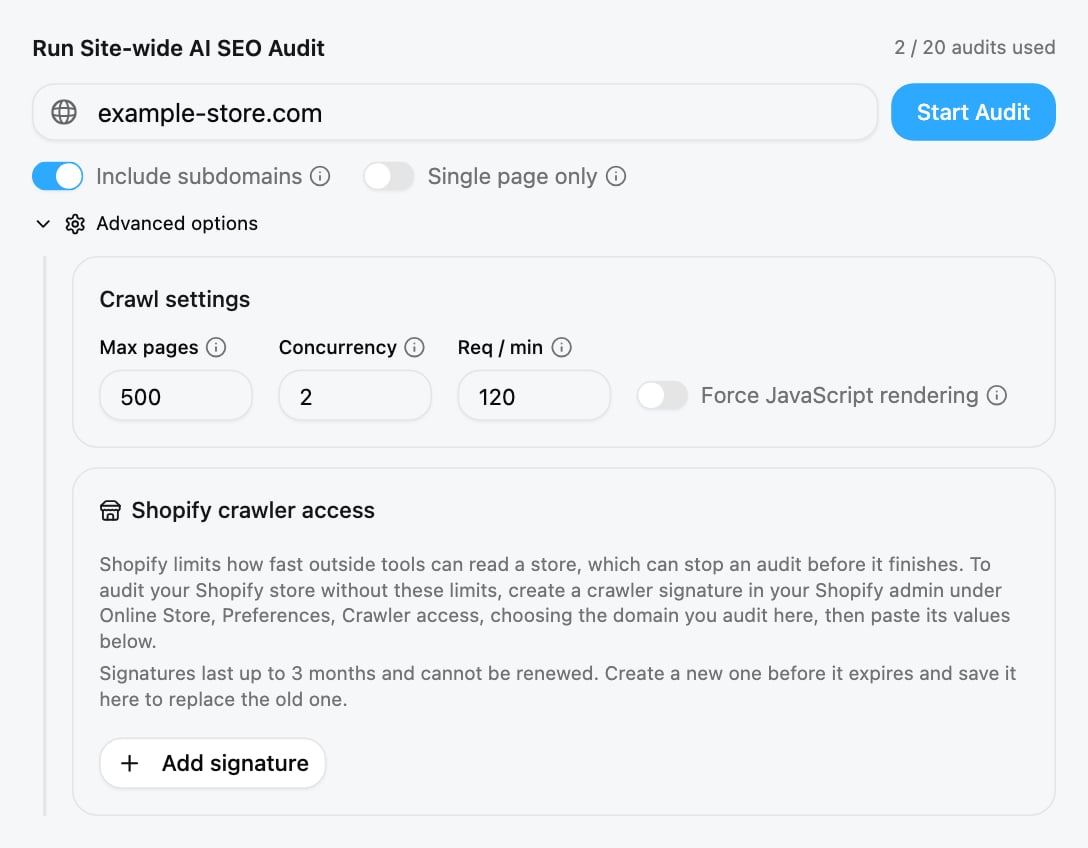
3
Paste the values from Shopify
In the window that opens, enter the store domain the signature was created for, for example 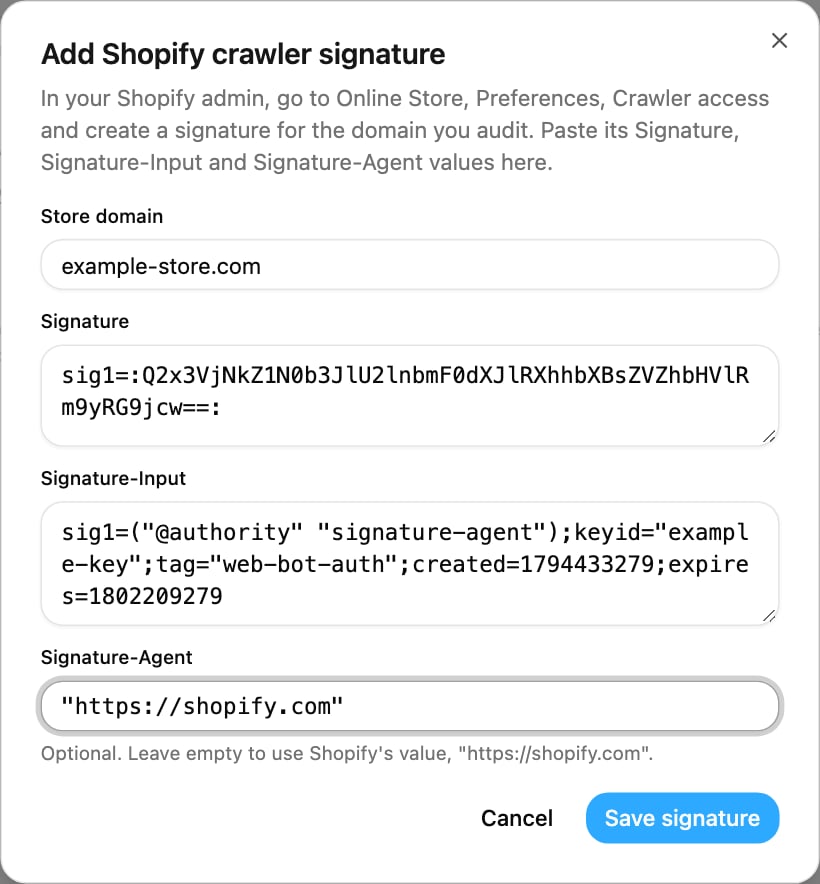
example.com. It must be a domain your Shopify store is served on; Pierview rejects domains that are not hosted on Shopify.Paste the Signature, Signature-Input and Signature-Agent values from Shopify, then click Save signature. Signature-Agent is optional: if you leave it empty, Pierview uses Shopify’s value, "https://shopify.com".4
Check that it is saved
The domain appears in the list with its expiry date and an Active label. Your next audit of that domain uses the signature. Saved values are stored encrypted and are never shown again.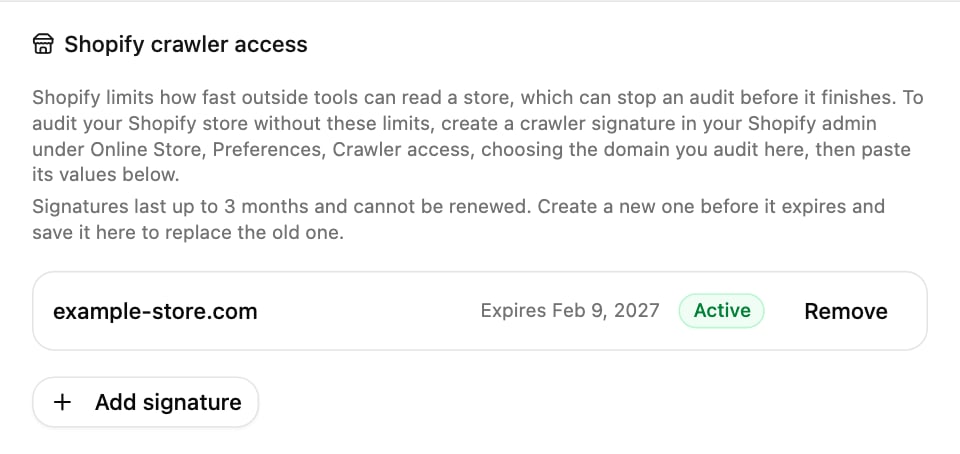
A signature covers exactly one domain. If your store answers on both
example.com and www.example.com, create a signature for the domain you enter in the audit, or one for each.