
Overview
The Framer CMS integration lets you automatically generate and publish SEO-optimized content directly to your Framer website. Set up a content schedule, connect your Framer project, and new articles will appear in your CMS collection ready for review.Step 1: Get Your Framer API Key
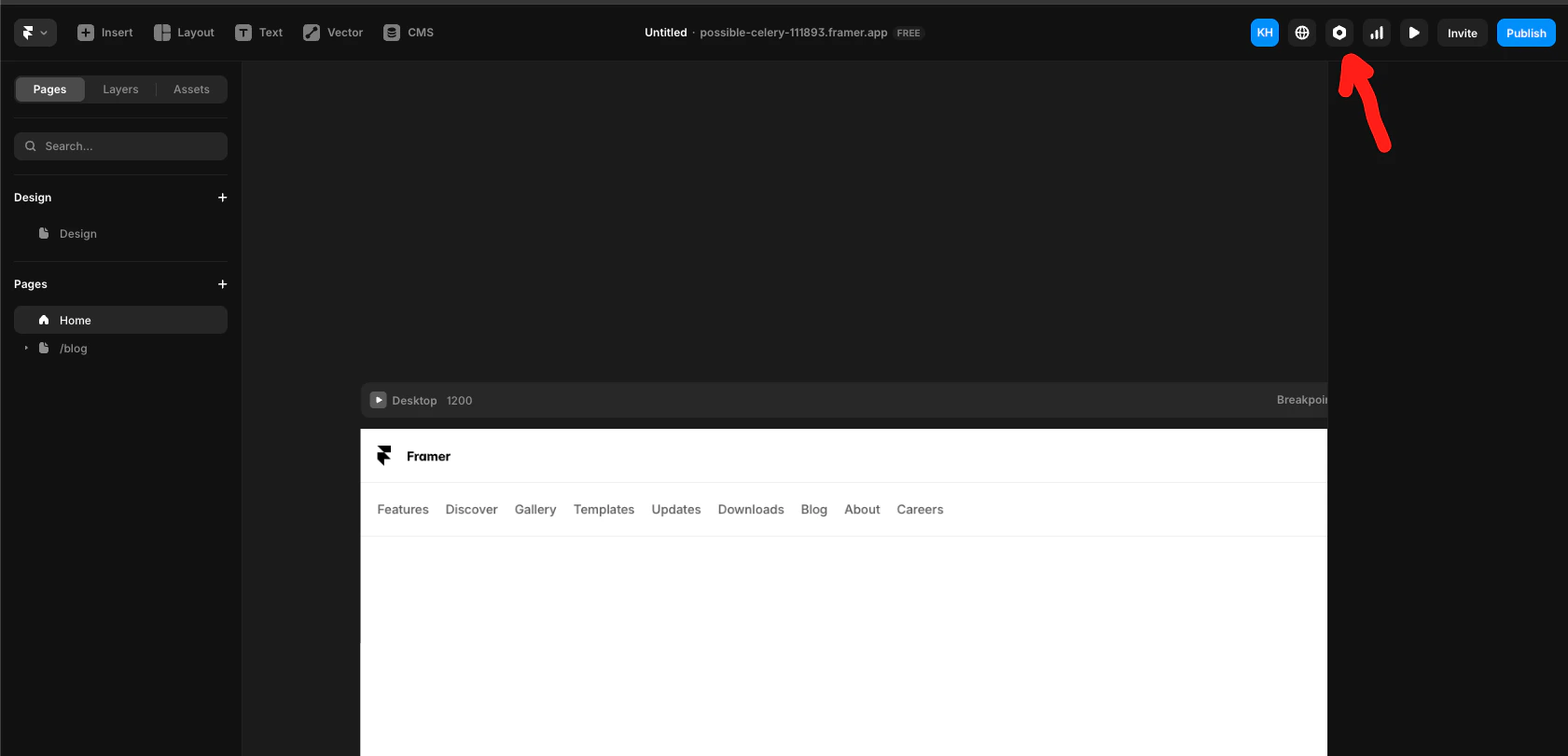
- Head to Framer and open your site’s settings page by clicking the gear icon in the top-right corner.
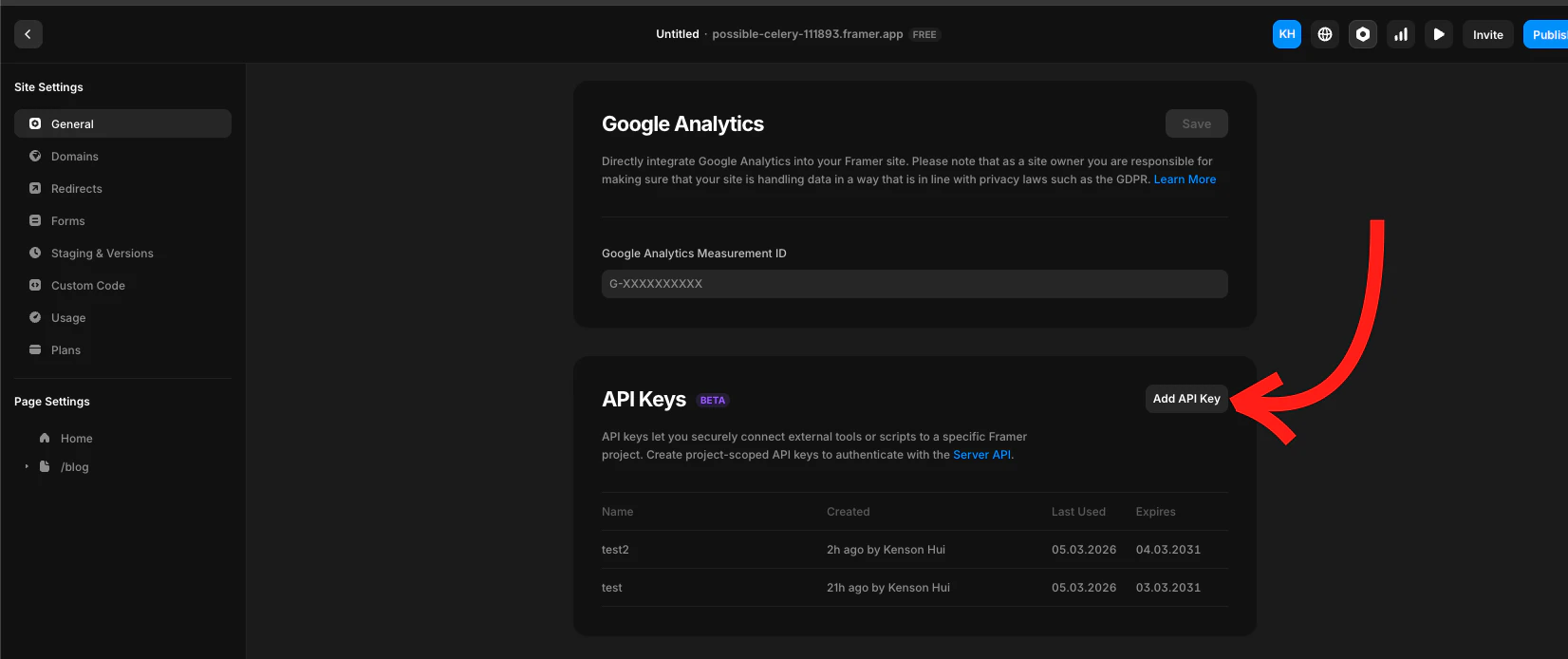
- Scroll down in the general settings until you see API Keys. Name your key
Pierview, then copy the token.
Step 2: Connect Pierview to Framer
- In Pierview, go to Settings → Integrations → CMS Integrations and click Connect next to Framer.
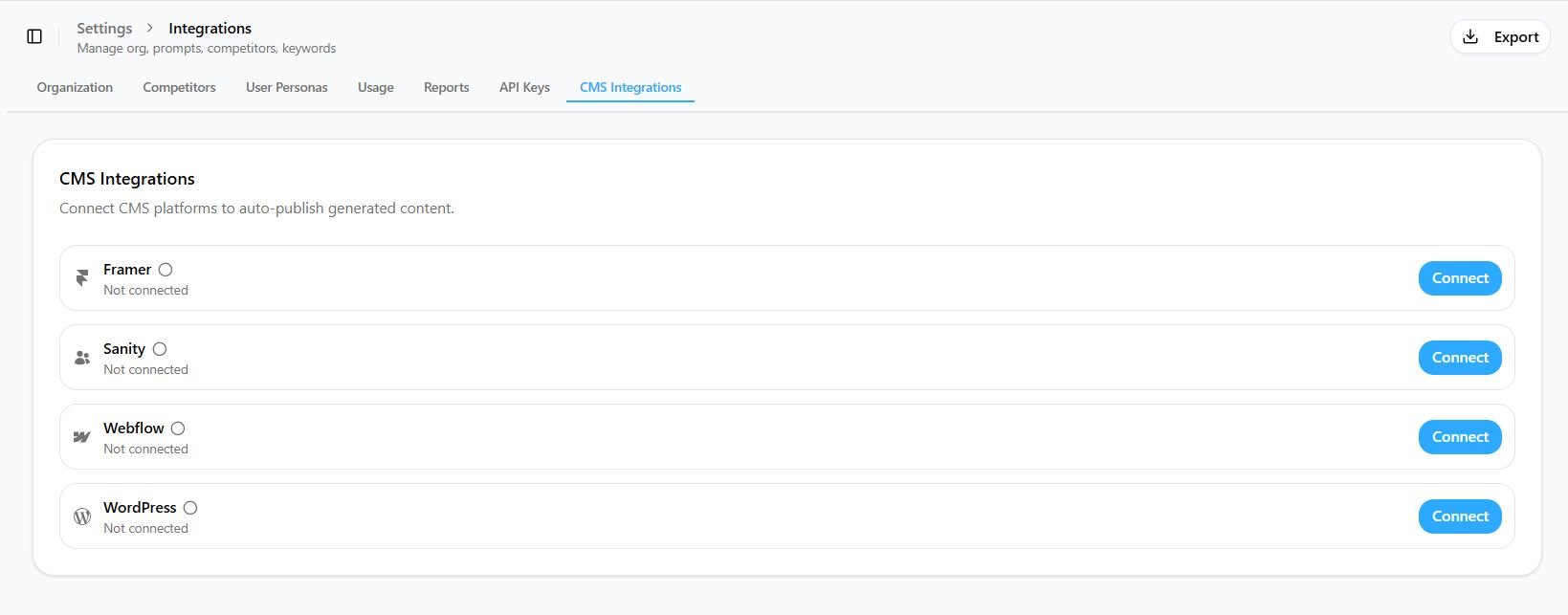
- Paste your API token into the API Token field.
- Copy the URL of the Framer page you’re on and paste that in as the Project URL.
- Select the CMS collection in Framer where you want content drafts to be exported.
- Map the Title and Content fields, these should be defaulted for you.
You’re Connected!
Any content scheduled for generation will automatically appear in your Framer CMS as a draft, where you can review it and publish it on your site. You can also export content on demand, go to any content generation and click “Publish” in the top-right sidebar to export it directly to Framer.Troubleshooting
Articles not appearing in Framer
Articles not appearing in Framer
- Verify your API key is correct and has not been revoked
- Check that the Project URL matches your Framer project
- Ensure the field mappings (Title, Content) match your Framer collection fields
- Check that the integration is enabled (toggle is on)
Content is showing as plain text instead of formatted
Content is showing as plain text instead of formatted
Make sure your Content field in Framer is set to Formatted Text, not Plain Text. The integration converts markdown to HTML, which Framer renders correctly in Formatted Text fields.
Duplicate slug errors
Duplicate slug errors
The integration automatically handles duplicate slugs by appending a number (e.g.
my-article-2). If you’re seeing errors, check that your Slug field name mapping is correct.