
Overview
Connecting Google Search Console (GSC) and Google Analytics 4 (GA4) lets Pierview read your own search and traffic data next to your AI visibility results.
Both connections are read-only. Pierview never changes anything in your Google accounts.
Each connection belongs to one organization in Pierview. If you manage several organizations, connect each one separately.
Before you start
- Search Console: sign in with a Google account that is an owner or user of your site’s property in Search Console. An unverified property cannot be read.
- Google Analytics: sign in with a Google account that has at least Viewer access to your website’s GA4 property. Universal Analytics properties are not supported.
- If your Google account is managed by Google Workspace, your admin may need to allow third-party access to Search Console and Analytics.
Connect Google Search Console
-
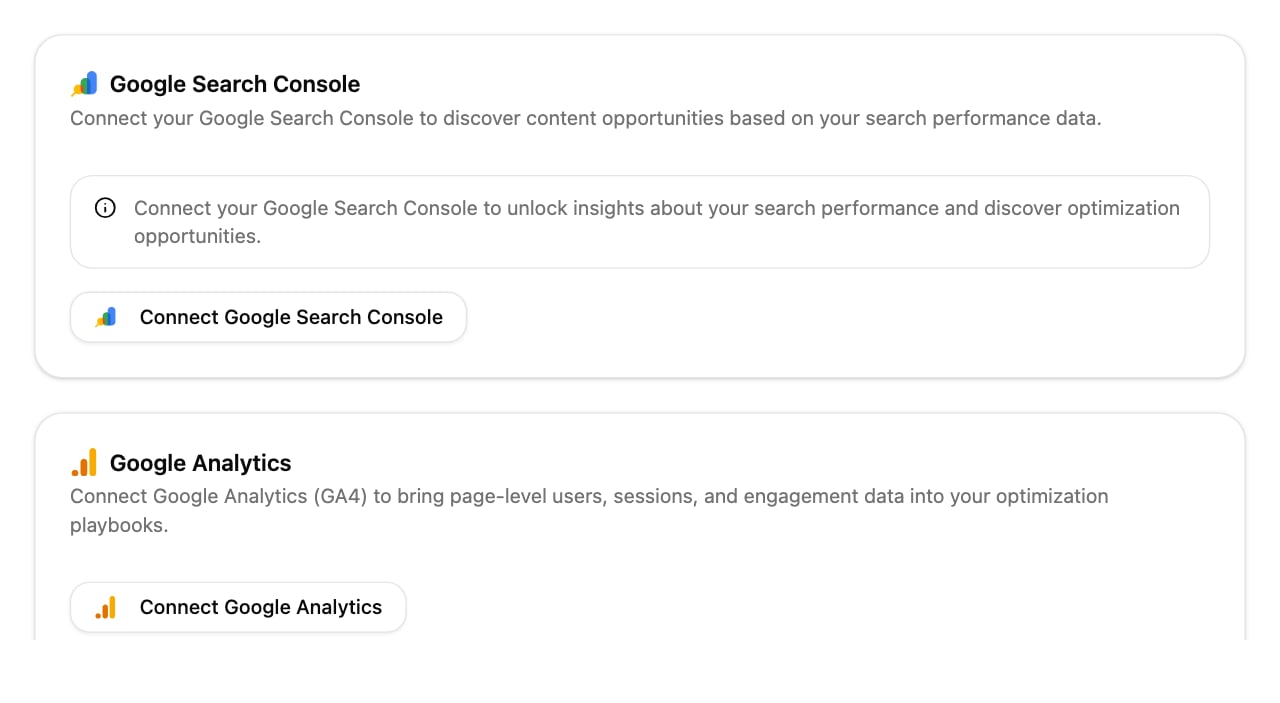
In Settings → Data Sources, click Connect Google Search Console.
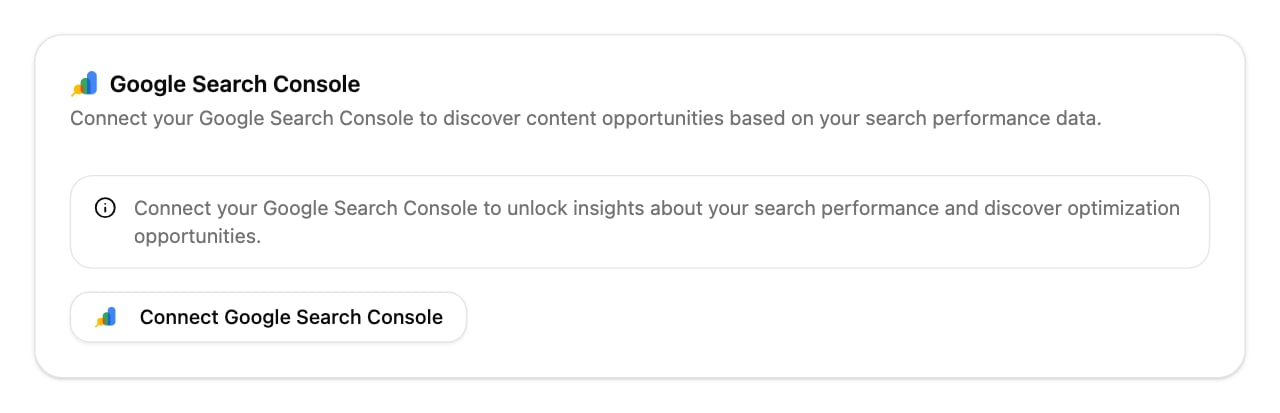
- Sign in with the Google account that has access to your Search Console property.
- On Google’s consent screen, tick View Search Console data for your verified sites and click Continue.
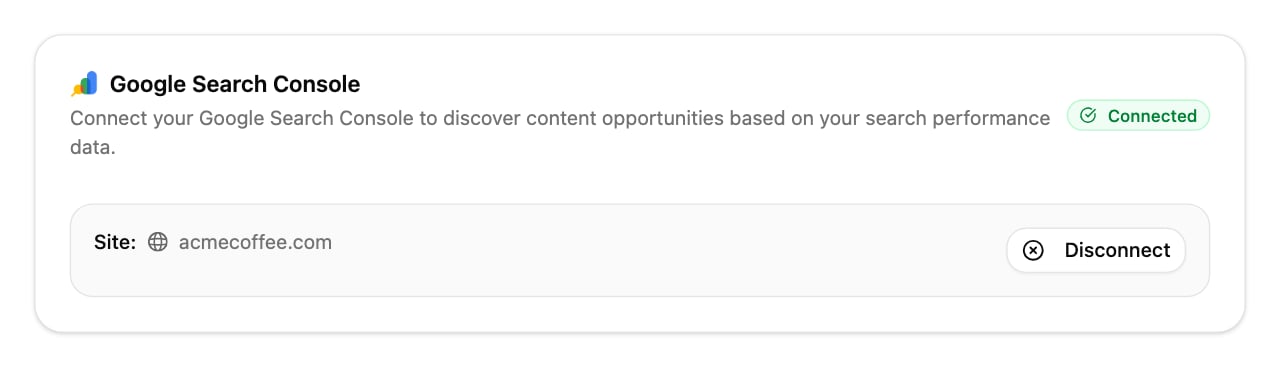
- Back in Pierview, the property is chosen for you when one matches your organization’s domain. You will see a confirmation such as “Search Console connected, using example.com”.
-
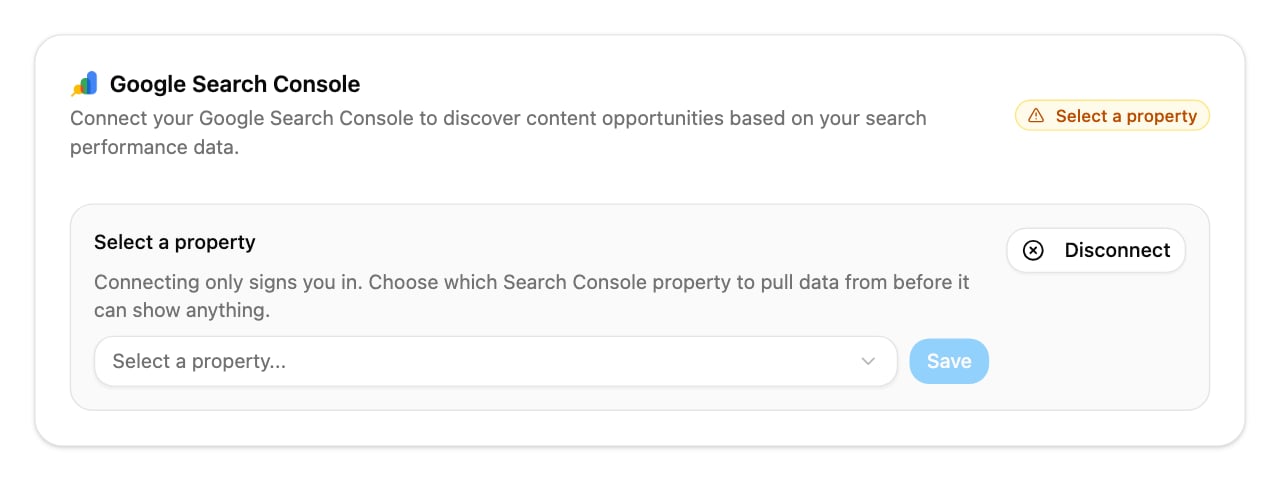
If no property matches, the card shows an amber Select a property badge. Choose a property from the list beside Disconnect and click Save. Nothing is brought in until a property is selected.
Connect Google Analytics
-
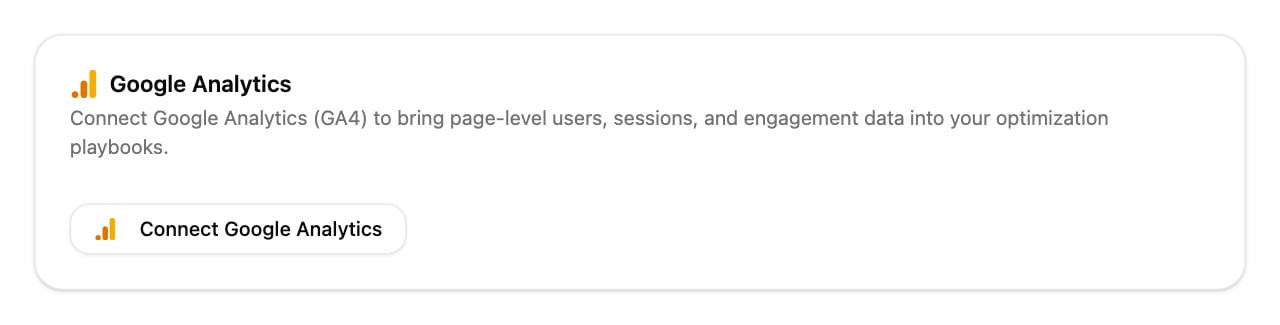
In Settings → Data Sources, click Connect Google Analytics.
- Sign in with the Google account that has access to your GA4 property.
- On Google’s consent screen, tick See and download your Google Analytics data and click Continue.
-
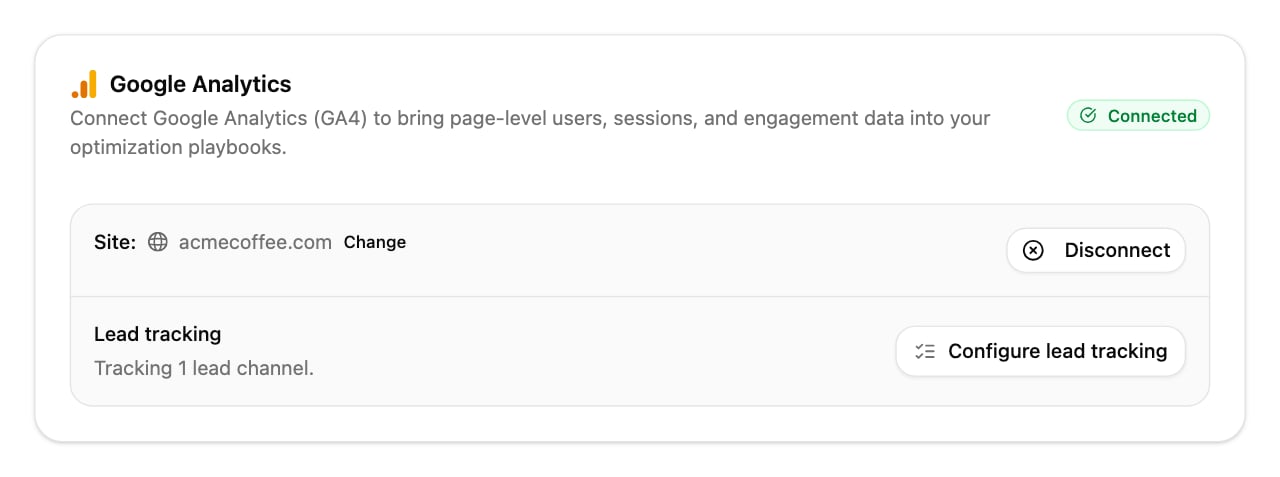
Back in Pierview, the property is chosen for you when one matches your organization’s domain. You will see a confirmation such as
Google Analytics connected, using "Example Website". -
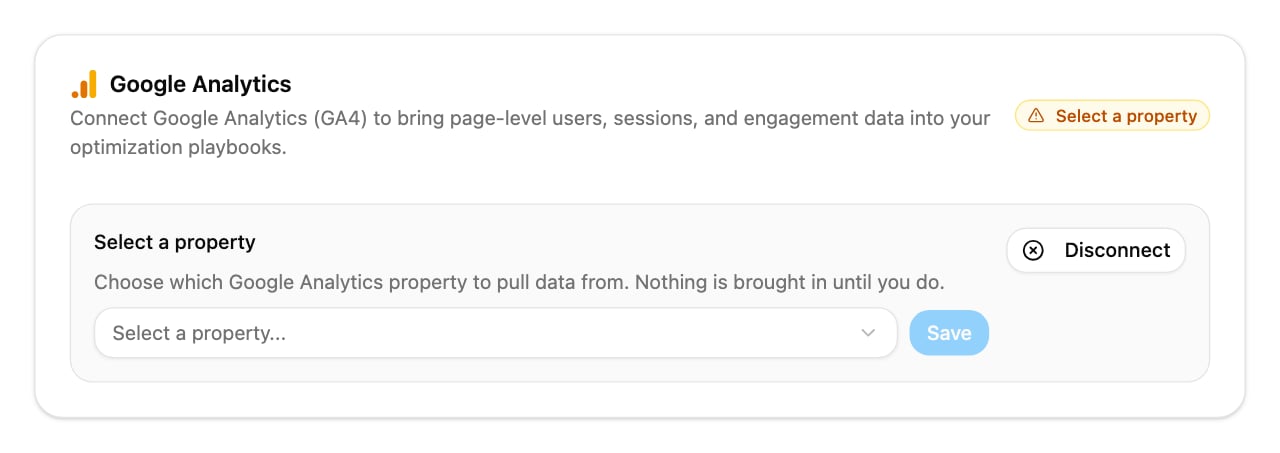
If no property matches, the card shows an amber Select a property badge. Choose a property from the list beside Disconnect and click Save. Nothing is brought in until a property is selected.
Change or disconnect a connection
- Google Analytics: click Change next to the property to pick another one, or Disconnect to remove the connection.
- Search Console: to switch to another property, click Disconnect, then connect again and choose the new property.
Troubleshooting
Search Console data is usually 2 to 3 days behind, and Google Analytics data can take up to 48 hours to process. Recent days may look low until Google finishes processing them.